
Windows stores the text, images, files, and links you copy in a temporary area called the clipboard. For years, accessing that content meant pasting immediately or losing it when you copied something else. Modern versions of Windows make this easier with Clipboard history, a built-in feature that lets you view and reuse several recently copied items.
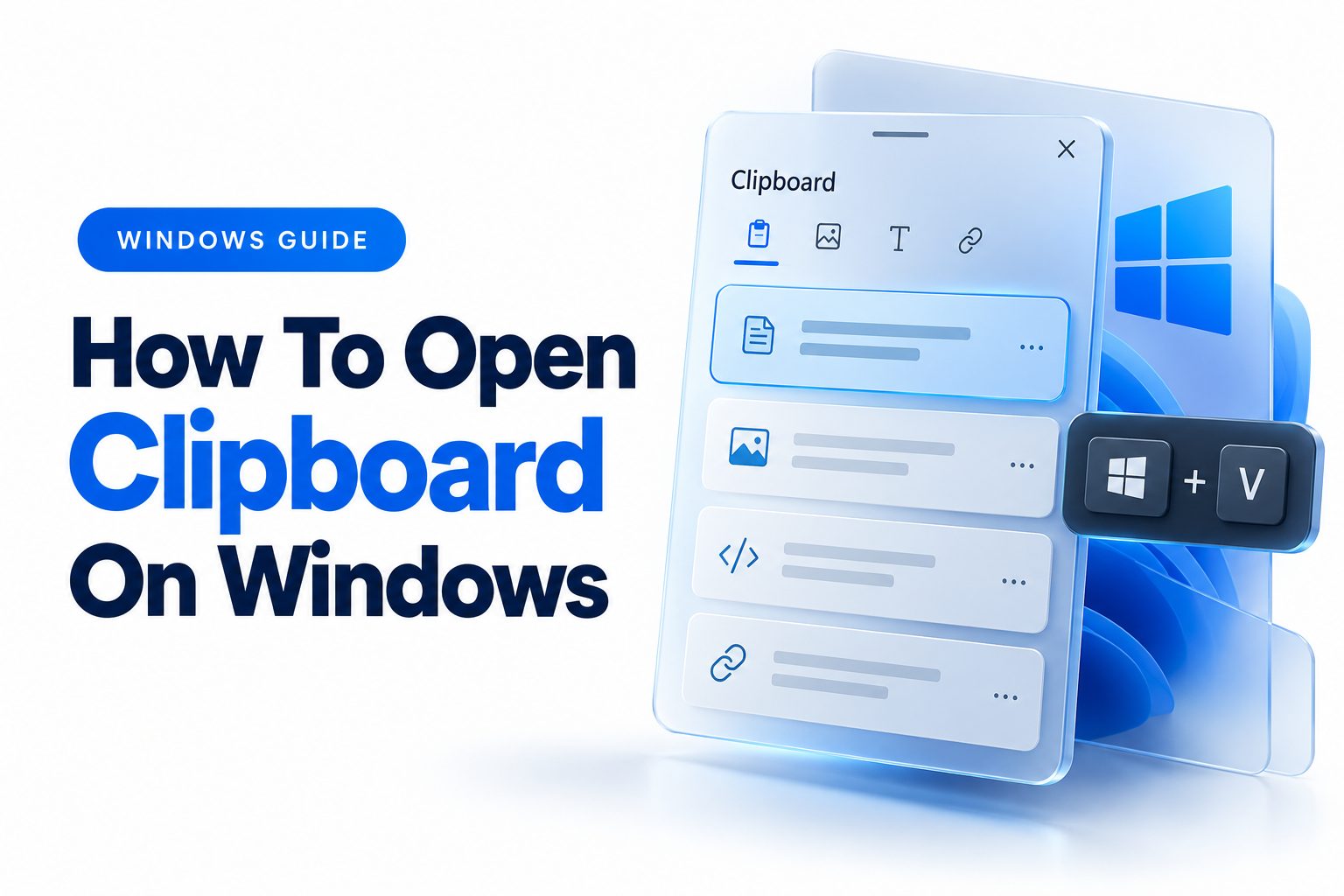
To open the clipboard on Windows, press Windows key + V. The first time you use this shortcut, Windows may ask you to turn on Clipboard history. Select Turn on, then press Windows key + V again to view your copied items. You can click any entry to paste it into the active application.
This guide explains how Clipboard history works, how to pin or delete items, how to sync clipboard content between devices, and what to do when the shortcut does not work. You will also learn the difference between the current clipboard item and saved clipboard history, along with practical privacy tips for handling passwords, personal information, and sensitive work documents.
Opening Clipboard History with Windows Key + V
The fastest way to open your clipboard is with the Windows key + V keyboard shortcut. This opens a small Clipboard history panel near the cursor or active text field. The panel displays recently copied content, including text snippets, links, and sometimes images.
Clipboard history is available in Windows 10 and Windows 11, although the layout may look slightly different depending on your version and updates. The feature must be enabled before Windows can show multiple copied items.
To activate Clipboard history, follow these steps:
1. Press Windows key + V.
2. Select Turn on when Windows asks whether you want to enable Clipboard history.
3. Copy some text, an image, or a file.
4. Press Windows key + V again.
5. Select an item from the panel to paste it.
The selected item is inserted into the application currently receiving input. For example, if you open Clipboard history while writing an email, clicking a copied sentence pastes it into the email body.
What Windows Clipboard History Stores
Clipboard history can store several recently copied items instead of only the most recent one. This is useful when collecting information from multiple websites, moving several pieces of text into a document, or switching between repeated phrases.
The feature supports more than plain text. Depending on the version of Windows and the type of content, Clipboard history can include formatted text, links, screenshots, and copied images. Files copied in File Explorer may appear differently from text and may not behave exactly like a copied sentence.
The standard clipboard and Clipboard history are related but not identical. The standard clipboard holds the item you copied most recently. Clipboard history keeps a list of eligible recent items so you can return to something copied earlier.
Key Clipboard history facts:
- Windows key + V opens the history panel.
- Windows key + C is not the standard shortcut for Clipboard history.
- Clipboard history must be enabled before multiple items are saved.
- Copied content may be cleared after restarting, depending on system settings and the type of item.
- Pinned items are kept available until you remove them manually.
- Some applications may restrict copying or prevent certain content from appearing.
Using the Clipboard Panel to Paste Content
Once Clipboard history is enabled, using it is straightforward. Place the cursor where you want the content to appear, press Windows key + V, and select the item. Windows pastes the chosen entry without requiring you to copy it again.
This method is especially helpful when writing reports, filling out forms, comparing sources, or transferring information between several applications. Instead of repeatedly switching between windows and copying the same sentence, you can keep several useful entries available in one panel.
The clipboard panel also provides controls for managing saved items. Depending on your Windows version, you may see options such as pin, delete, and clear all. These controls are usually available through a three-dot menu next to each entry.
Pinning Important Clipboard Items
Pinning an item prevents it from being removed when Windows clears older clipboard entries. A pinned item remains available in Clipboard history until you unpin or delete it.
To pin an item:
1. Press Windows key + V.
2. Find the text, image, or other content you want to keep.
3. Select the three-dot menu beside the item.
4. Choose the pin option.
Pinned entries are useful for information you reuse often, such as an office address, a standard reply, a project code, or a frequently used paragraph. Avoid pinning confidential information, including passwords, account recovery codes, payment details, or private customer data.
Pinned content can make the clipboard panel more practical, but it should not become a storage system for sensitive information. Anyone with access to your Windows account may be able to view pinned clipboard entries.
Managing and Clearing Clipboard Content
Windows gives you several ways to remove clipboard content. You can delete one entry, clear the complete history, or remove the current clipboard data through Settings.
To delete one item from Clipboard history:
1. Press Windows key + V.
2. Locate the entry you no longer need.
3. Open its three-dot menu.
4. Select Delete.
To remove all unpinned items, open the Clipboard panel and choose Clear all. Pinned items normally remain unless you delete them individually. This makes Clear all useful when you want to remove temporary content without losing saved entries.
You can also open Settings, select System, and choose Clipboard. The exact layout may differ between Windows 10 and Windows 11, but the Clipboard settings area includes controls for Clipboard history, synchronization, and clearing data.
Clearing the clipboard is a useful habit after copying private information. It can reduce the chance that another person using the same account or computer will see something you intended to keep private.
Clipboard Controls at a Glance
Action | Method | Result
Open Clipboard history | Press Windows key + V | Displays
Paste the latest item | Press Ctrl + V | Inserts the most
Paste an older item | Press Windows key + V, then select an entry | Inserts the selected history item
Pin an item | Use the three-dot menu | Keeps the entry
Delete one item | Use the three-dot menu | Removes the
Clear unpinned history | Select Clear all | Removes
Clear clipboard data | Open Settings, then System and Clipboard | Removes saved clipboard information according to the available settings
Turning Clipboard History On or Off
Clipboard history can be controlled from Windows Settings. In Windows 11, open Settings, select System, and choose Clipboard. Find the Clipboard history switch and turn it on or off. In Windows 10, the option is also located under System and Clipboard.
When Clipboard history is turned off, Windows may continue supporting ordinary copy-and-paste through Ctrl + C and Ctrl + V, but it will no longer maintain a list of multiple copied items. Turning the feature back on does not always restore content that was removed while it was disabled.
You may want to disable Clipboard history on a shared computer, a company device with strict data-handling rules, or a system where sensitive information is frequently copied. For personal devices, leaving it enabled can save time, provided you manage private data carefully.
Syncing Clipboard Across Windows Devices
Windows can synchronize clipboard content between compatible devices signed in with the same Microsoft account. When enabled, an item copied on one Windows computer may become available on another device.
To review this setting, open Settings, go to System, select Clipboard, and look for the synchronization option. Windows may provide choices such as automatic synchronization or manual synchronization. The available options depend on your Windows version, account configuration, and organizational policies.
Clipboard syncing is convenient when moving a short note from a desktop computer to a laptop. It can also be helpful when working across devices during travel or remote work. The feature requires careful consideration because copied content may leave the original computer.
Before enabling sync, consider these points:
- Use it only on devices you personally control or trust.
- Avoid copying passwords and security codes while sync is active.
- Confirm that the same Microsoft account is not being used by other people.
- Review company policies before enabling synchronization on a work computer.
- Disable syncing if you no longer need cross-device clipboard access.
Using Clipboard History with Text and Images
Clipboard history is most commonly used for text, but it may also handle images and screenshots. Copy a picture from an application or webpage, then press Windows key + V to check whether it appears in the panel.
Image support can vary based on the source application, file type, and Windows version. Some programs copy a full image, while others place a link, file reference, or application-specific object on the clipboard. If the entry does not appear, try copying the image again or use the application’s Save or Export command.
For screenshots, the Snipping Tool offers a more reliable workflow than relying on Clipboard history alone. After capturing an area, you can paste the screenshot directly into another application or save it as a file for later use.
Clipboard history is best for short-term reuse. For a large collection of images, documents, or research notes, use a dedicated folder or a note-taking application. This avoids losing valuable material when the clipboard is cleared.
Common Clipboard Problems and Fixes
The Windows key + V shortcut may fail for several reasons. Clipboard history might be disabled, a system policy may block it, or the Windows Explorer process may need to be refreshed. Start by opening Settings and confirming that Clipboard history is turned on.
If the panel opens but does not show recently copied items, copy a simple sentence from Notepad and try again. This test helps determine whether the problem is with a specific application or with Clipboard history itself.
If the shortcut still does not work, restart the computer and install available Windows updates. On managed work devices, contact your IT department because clipboard features may be restricted for security reasons.
Try these troubleshooting steps:
- Confirm that you are pressing the Windows key and V at the same time.
- Test copying plain text from Notepad.
- Check the Clipboard history setting in System settings.
- Restart Windows Explorer or restart the computer.
- Install pending Windows updates.
- Check whether a third-party keyboard utility is remapping the shortcut.
- Ask an administrator whether clipboard access is restricted.
- Test the feature in another application.
Clipboard History Does Not Show an Item
Not every copied object is saved in Clipboard history. Some applications prevent copying, and some content is marked as protected. Password managers, banking websites, secure forms, and remote desktop tools may deliberately limit clipboard access.
Large files and complex application objects may also behave differently from ordinary text. Windows clipboard support depends partly on how the source program places content on the clipboard. If an item is missing, try copying a smaller portion or using a normal file-saving method.
Another possibility is that the item was copied before Clipboard history was enabled. Windows generally cannot recover older clipboard entries after the fact. Enable the feature first, then copy the content again.
Clipboard History Shows Old or Unexpected Content
Seeing an old item can be confusing, especially if you expected the most recent copy to appear. Pressing Ctrl + V pastes the current clipboard item, while Windows key + V opens the list of stored history entries. These actions are related but can produce different results.
If the wrong entry is selected, open the panel and choose the correct item manually. You can also clear outdated entries to make the list easier to manage. Pin only content that you intentionally want to keep.
When multiple users share a computer, unexpected clipboard content may belong to another session or account. Lock your Windows account when stepping away and use separate user profiles whenever possible.
Security and Privacy Considerations
Clipboard data can contain much more than harmless text. It may include passwords, authentication codes, personal addresses, medical information, customer records, or confidential business material. Clipboard history and syncing can increase convenience, but they also create more places where copied data may remain accessible.
Password managers often warn users not to copy credentials into ordinary clipboard tools. If you must copy sensitive data, paste it promptly, avoid pinning it, and clear the clipboard afterward. Some password managers automatically erase copied passwords after a short period.
Shared computers require extra care. Before leaving a public, office, classroom, or family computer, clear clipboard entries and sign out of your account. Do not enable cross-device synchronization on a machine you do not fully control.
For more Windows privacy advice, see [Internal Link: Windows Privacy and Security Settings] when reviewing how system features store and share personal information.
Clipboard History Compared with Other Options
Clipboard history is convenient for short-term copying, but it is not the best tool for every situation. A text editor is better for saving a longer draft, a notes application is better for organizing research, and File Explorer is better for managing documents and images.
Third-party clipboard managers may offer search, categories, formatting preservation, and larger storage limits. These tools can be useful for advanced workflows, but they may also gain access to everything you copy. Choose software carefully, review its privacy policy, and avoid installing untrusted clipboard utilities.
The right option depends on what you need:
Tool | Best use | Main limitation
Windows Clipboard history | Reusing recent text, links, and images | Designed for short-term storage
Notepad | Keeping plain-text notes | Does not automatically
OneNote or another notes app | Organizing research and longer information | Requires manual saving and organization
File Explorer | Storing documents and images | Not designed
Third-party clipboard manager | Advanced search and larger history | Adds privacy and security considerations
Practical Examples for Everyday Use
Suppose you are completing an online application and need to enter information from several documents. You can copy each relevant detail, open Clipboard history, and select the required item when each field is ready. This reduces repeated switching between windows.
Writers and researchers can use the feature to collect short quotations, URLs, names, and reference details. Pinning a project code or repeated phrase can save time during a work session, while clearing the history afterward removes temporary material.
Clipboard history can also help with technical tasks. You might copy an error message, a command, and a file path from different windows, then paste each one into a support ticket or troubleshooting document. Always check formatting before submitting copied content.
For additional Windows productivity ideas, visit [Internal Link: Windows Keyboard Shortcuts and Productivity Tips] to see how Clipboard history works alongside other built-in shortcuts.
Best Practices for Faster Clipboard Work
The most efficient clipboard workflow combines keyboard shortcuts with simple organization. Use Ctrl + C to copy, Windows key + V to choose from recent entries, and Ctrl + V when you only need the latest copied item.
Avoid storing everything permanently in Clipboard history. Pin only information you use repeatedly, and clear entries that contain private or temporary data. This keeps the panel useful and reduces the chance of pasting outdated content.
Before pasting into an important document, confirm that the selected entry is correct. Clipboard history can contain similar sentences, links, or numbers, and choosing the wrong item may introduce errors that are easy to overlook.
Do:
- Use Windows key + V to review copied items.
- Pin frequently reused, non-sensitive text.
- Clear private information after use.
- Test copying with Notepad when troubleshooting.
- Review sync settings on every Windows device.
Do not:
- Pin passwords, payment details, or authentication codes.
- Enable clipboard sync on an untrusted computer.
- Assume every copied item will be saved.
- Use Clipboard history as a replacement for file storage.
- Paste sensitive information without checking the destination.
Conclusion
Windows makes clipboard access simple once Clipboard history is enabled. Press Windows key + V to open the panel, then select a recent entry to paste it into the active application. The feature can store text, links, images, and other copied content, while pinning helps retain useful non-sensitive items.
Use Settings under System and Clipboard to control history, synchronization, and clearing options. If the panel does not work, check that Clipboard history is enabled, test plain text in Notepad, restart Windows, and consider whether an administrator or application has restricted clipboard access.
The most important privacy rule is to treat copied information as temporary. Do not pin passwords or confidential data, be cautious with cross-device syncing, and clear sensitive entries when you finish. With those habits in place, knowing how to open clipboard on windows can make everyday writing, research, form filling, and troubleshooting considerably faster.
Frequently Asked Questions
What is the shortcut for Clipboard history?
The shortcut is Windows key + V. If Clipboard history has not been enabled, Windows displays a prompt asking you to turn it on. After activation, the shortcut shows recently copied items.
Why does Windows key + V not work?
Clipboard history may be disabled, restricted by an administrator, or affected by a keyboard utility. Check Settings under System and Clipboard, copy plain text from Notepad, and restart Windows if necessary.
How long does Windows keep clipboard items?
Windows keeps recent clipboard items according to its history rules and available settings. Pinned entries remain until removed manually, while unpinned content may be cleared when history is cleared or Windows restarts.
Can Clipboard history store images?
Yes, Windows may store copied images and screenshots in Clipboard history. Support can vary by application and content type, so save important images as files instead of relying only on the clipboard.
Is Clipboard history safe for passwords?
Clipboard history is not ideal for passwords because copied credentials may remain accessible. Use a password manager’s secure fill feature when possible, and clear the clipboard after copying sensitive information.